Custom invoices
When you choose to create an invoice SoloTime will use whatever template you have chosen for that client and show you your invoice in a preview. There are several template styles to choose from.
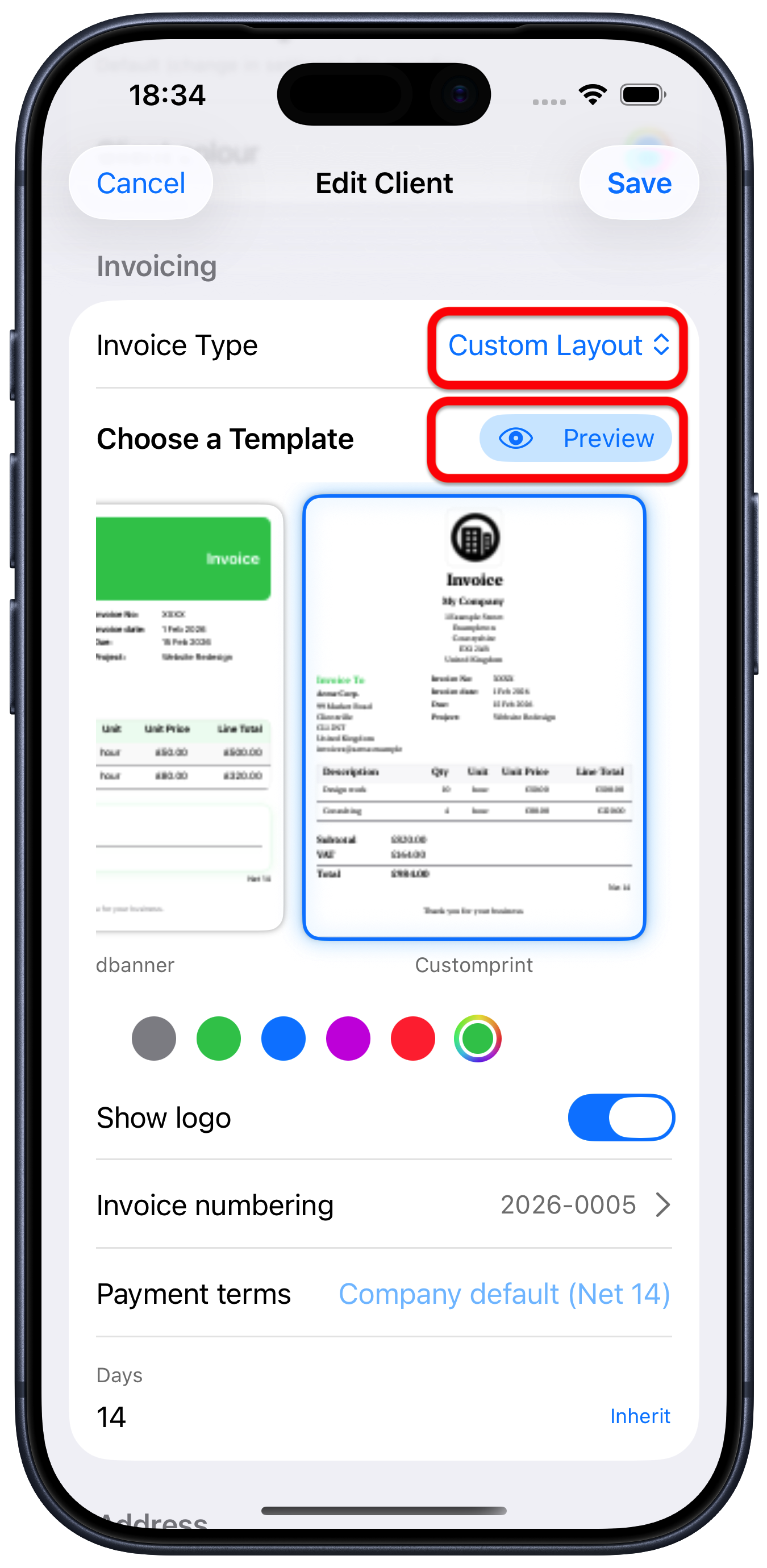
You can choose a template style when you first add a new client or you can change the style anytime by editing the client.
To choose a new template style for a client:
Tap on the client
Tap the ellipsis “…” button
Choose “Edit Client”
This will bring up the Edit Client screen.
Scroll to the “Invoicing” section
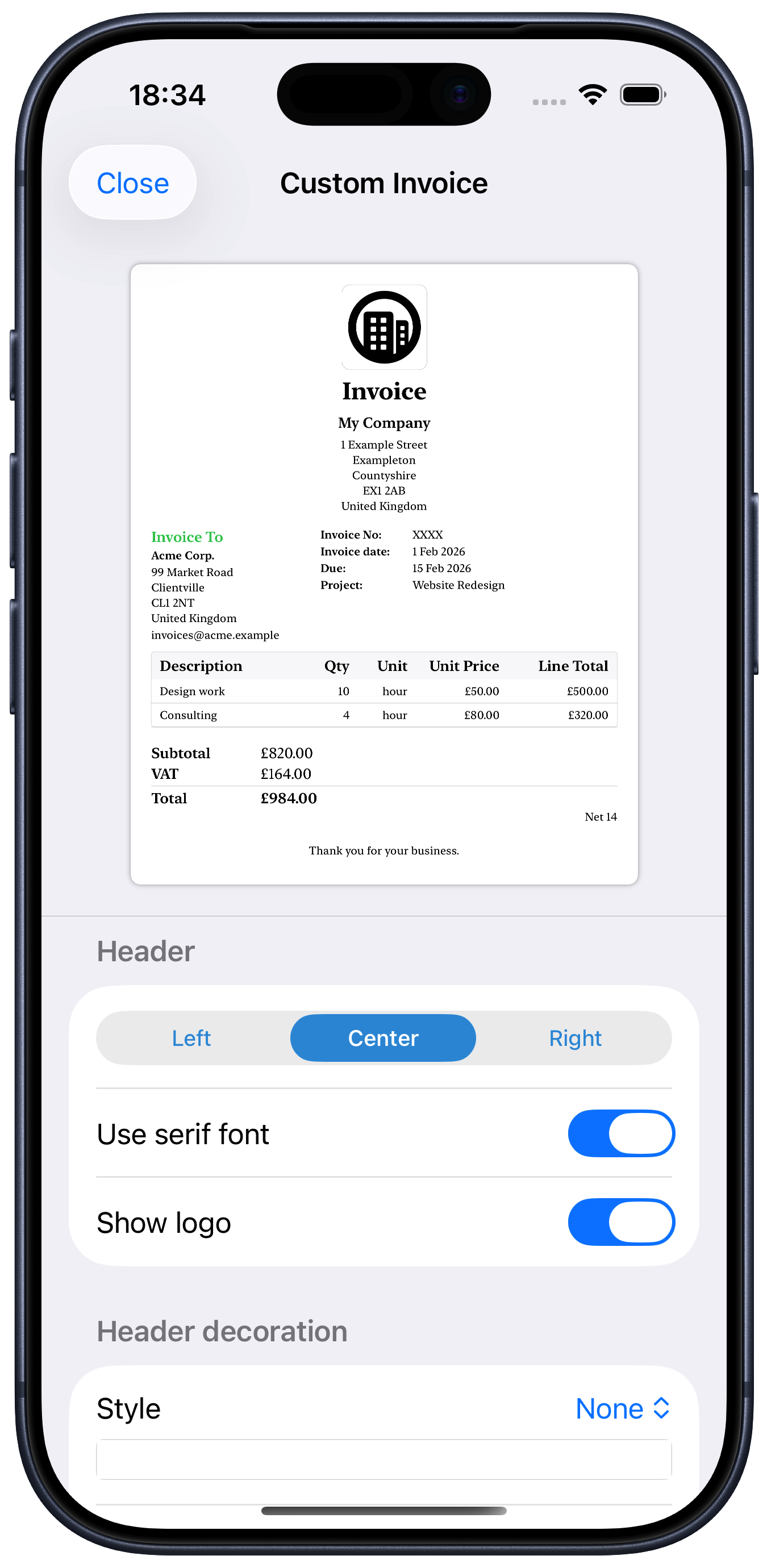
Choose the “Custom Layout” or “Customprint” template. Tap the “Preview” button. You will be shown a preview and a number of settings that let you customise the invoice template. As you change each of these, the preview will change to reflect your choice. There are several settings you can customise:
Header
Header
You can choose to have the header, which contains your logo and company name and address on the left, in the centre or at the right hand side of the invoice
Use serif font: choose between the classic serif or more modern style
Show logo
Choose to hide or show your company logo (if you have set one up in your company information)
Header decoration
There are a number of styles to choose from here, such as “Wave” which adds a curving block of colour at the top of the invoice. You can also choose the colour of this, as well as whether you want it above everything else, or behind your header. You can change the height as well to make it bigger or smaller. If you have chosen “Above”, your header will be moved down the page if you increase the height.
Header text colour
This simply changes the colour of the word “Invoice” to whatever you want.
Issuer details
You can choose to hide your company address and contact information from the invoice.
Customer details
Choose to hide the customer address, VAT/Tax Number or email address.
Line items
This refers to the actual breakdown of the charges listed on the invoice. You a choose to hide the quantity, unit or unit price.
Totals & footer
You can also choose to hide your bank details, the payment terms and the footer note , e.g. “Thank you for your business”
Footer decoration
This is like the header decoration option above, but for the bottom of the page.
Footer text colour
As the name suggests, this allows you to change the colour of the text at the bottom of the page.