Create a custom invoice template
When you choose to create an invoice SoloTime will use whatever template you have chosen for that client and show you your invoice in a preview. There are several template styles to choose from.
You can choose a template style when you first add a new client or you can change the style anytime by editing the client.
To choose a new template style for a client:
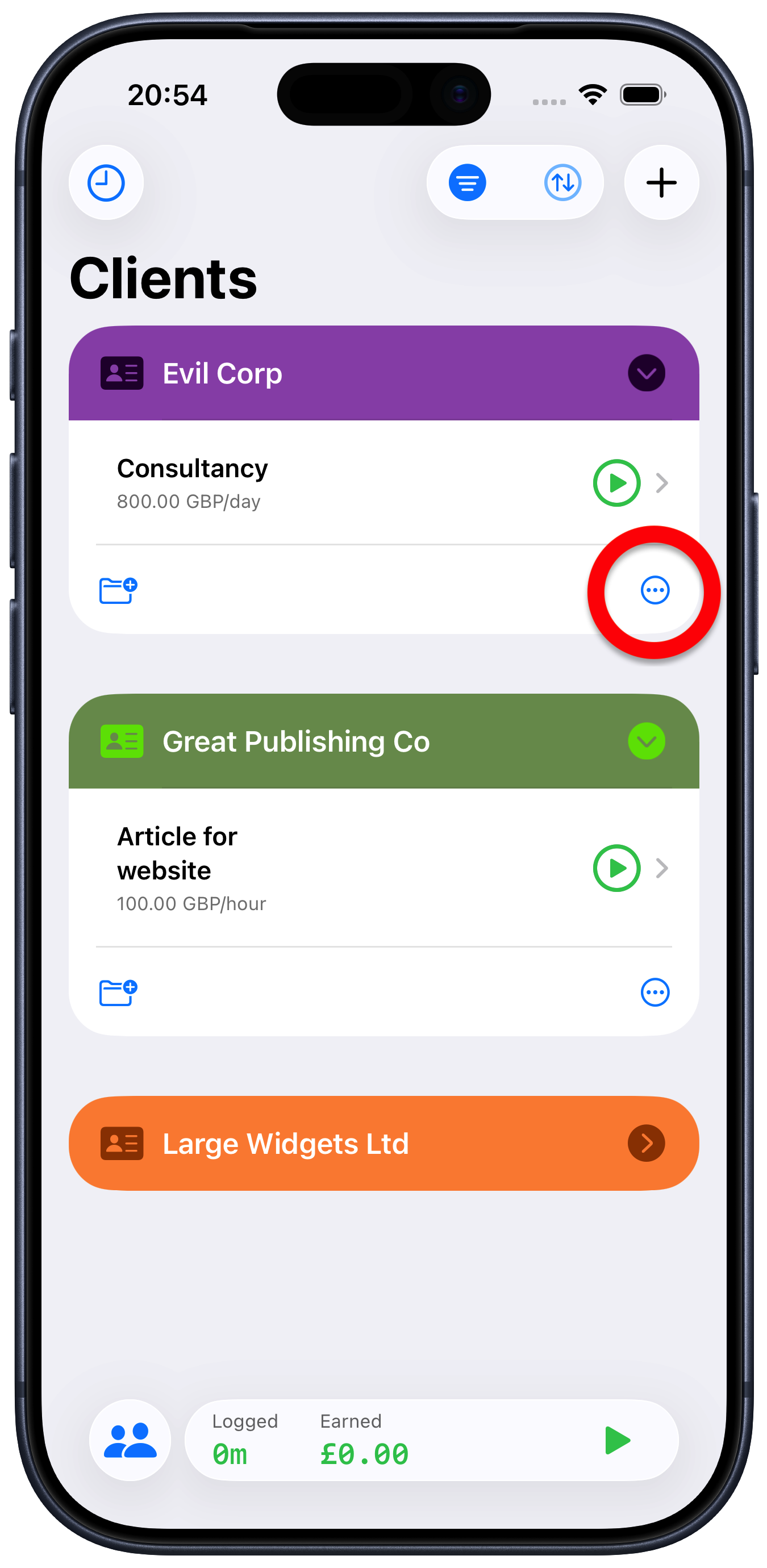
Tap on the client
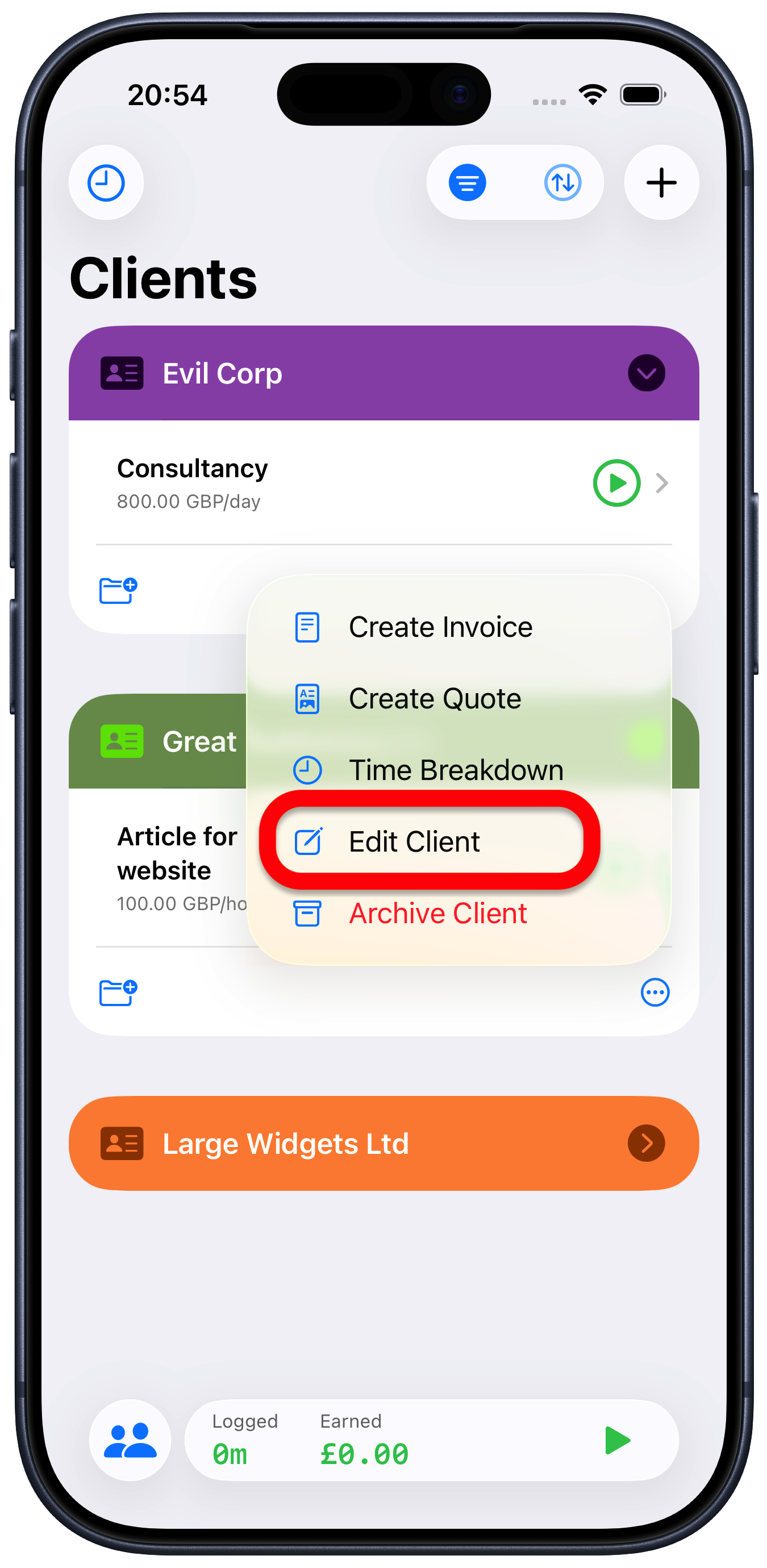
Tap the ellipsis “…” button
Choose “Edit Client”
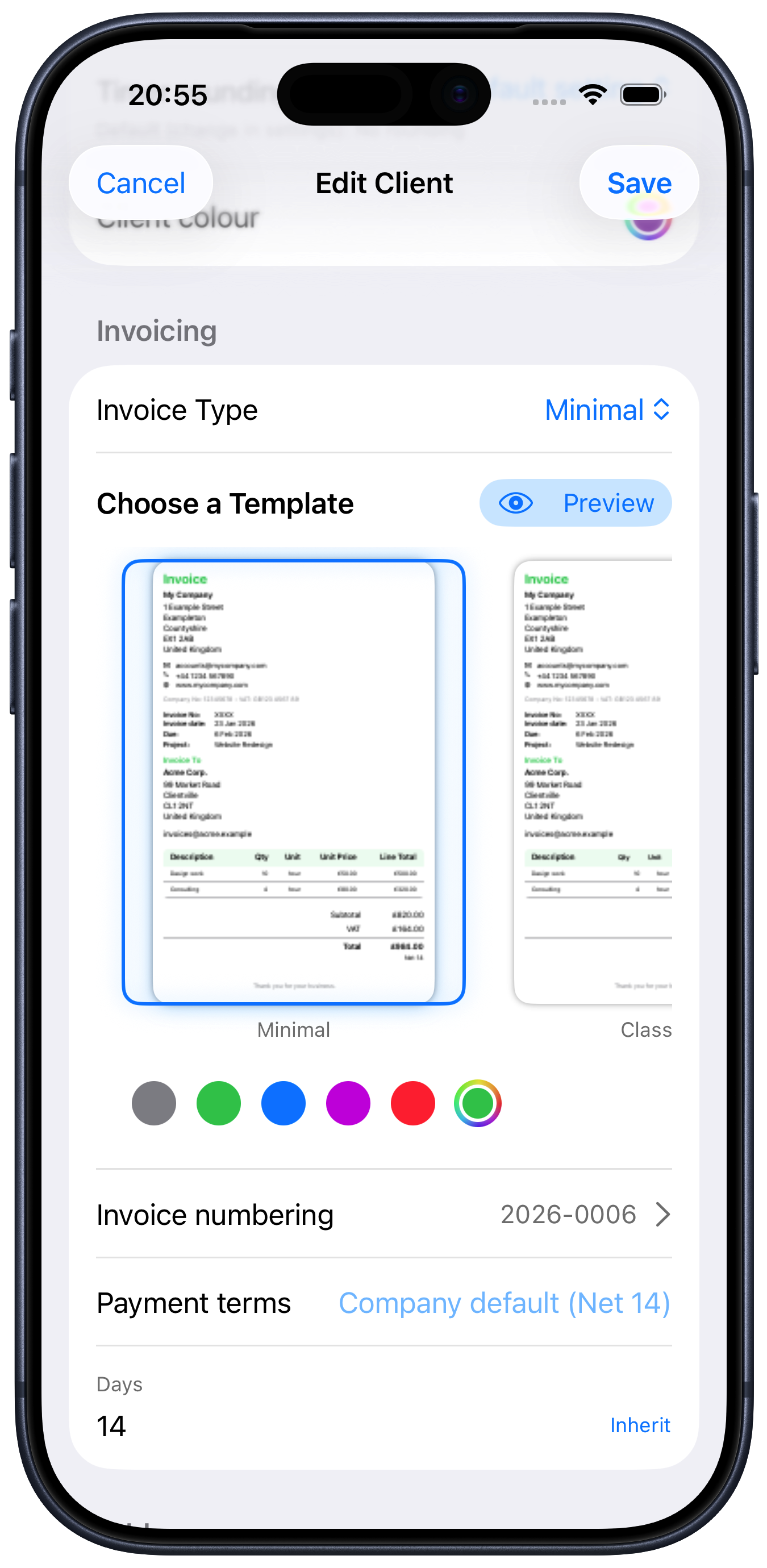
This will bring up the Edit Client screen.
Scroll to the “Invoicing” section
Choose the template you want to use by either selecting it from the “Invoice Type” menu or swipe through the template images until you find the one you want. You can also tap “Preview” to get a closer look at a template.
4. Tap the template you want to use.
5. Tap “Save”
Now when you create an invoice for this client, Solotime will use the template you chose.
Note if you choose the “Custom Layout” and tap “Preview” you will be shown a preview and a number of settings that let you customise the invoice template.