How to add a new project
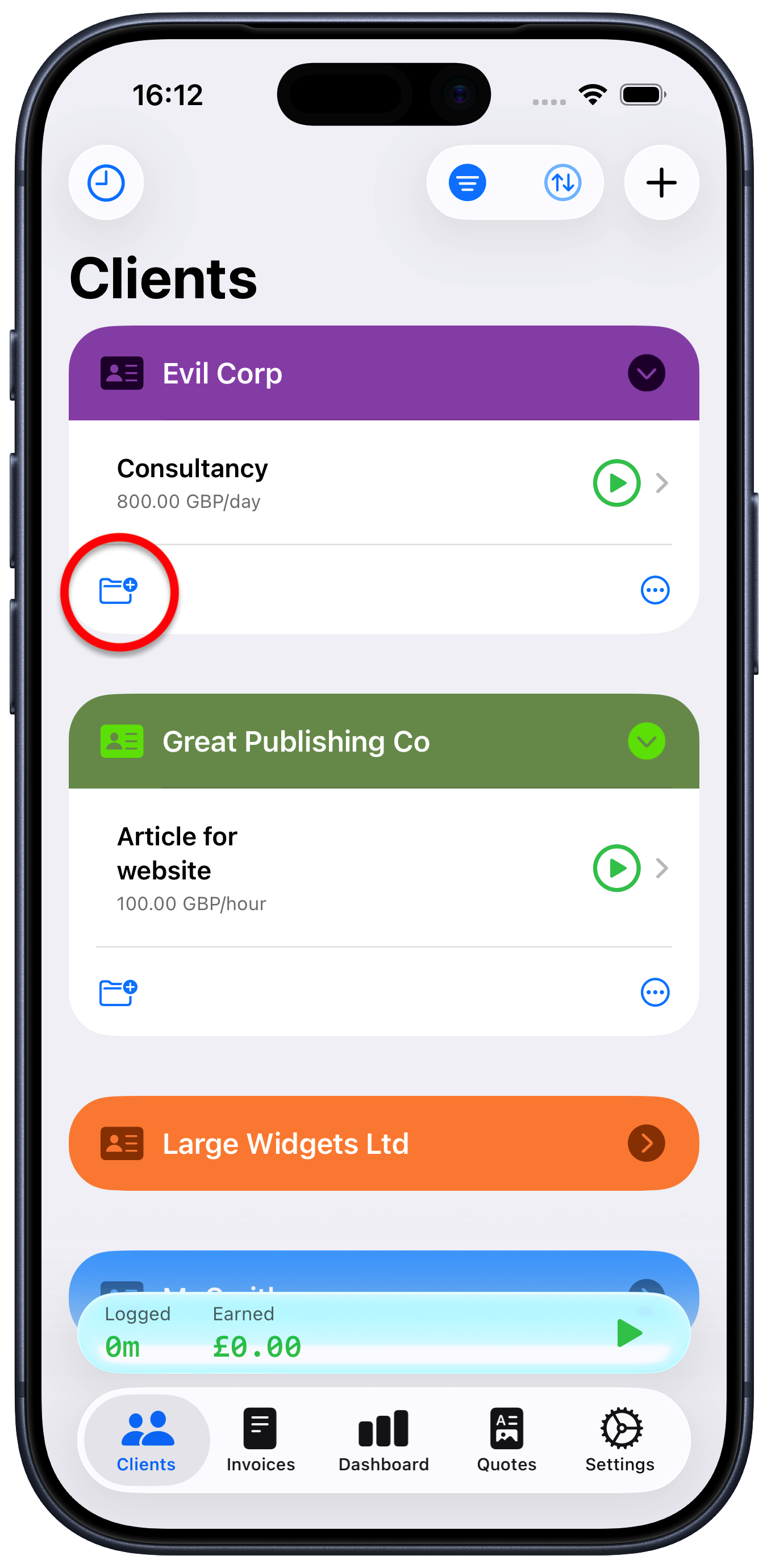
Tap on the client you are doing the project for
Tap the add project button at the bottom left of that client
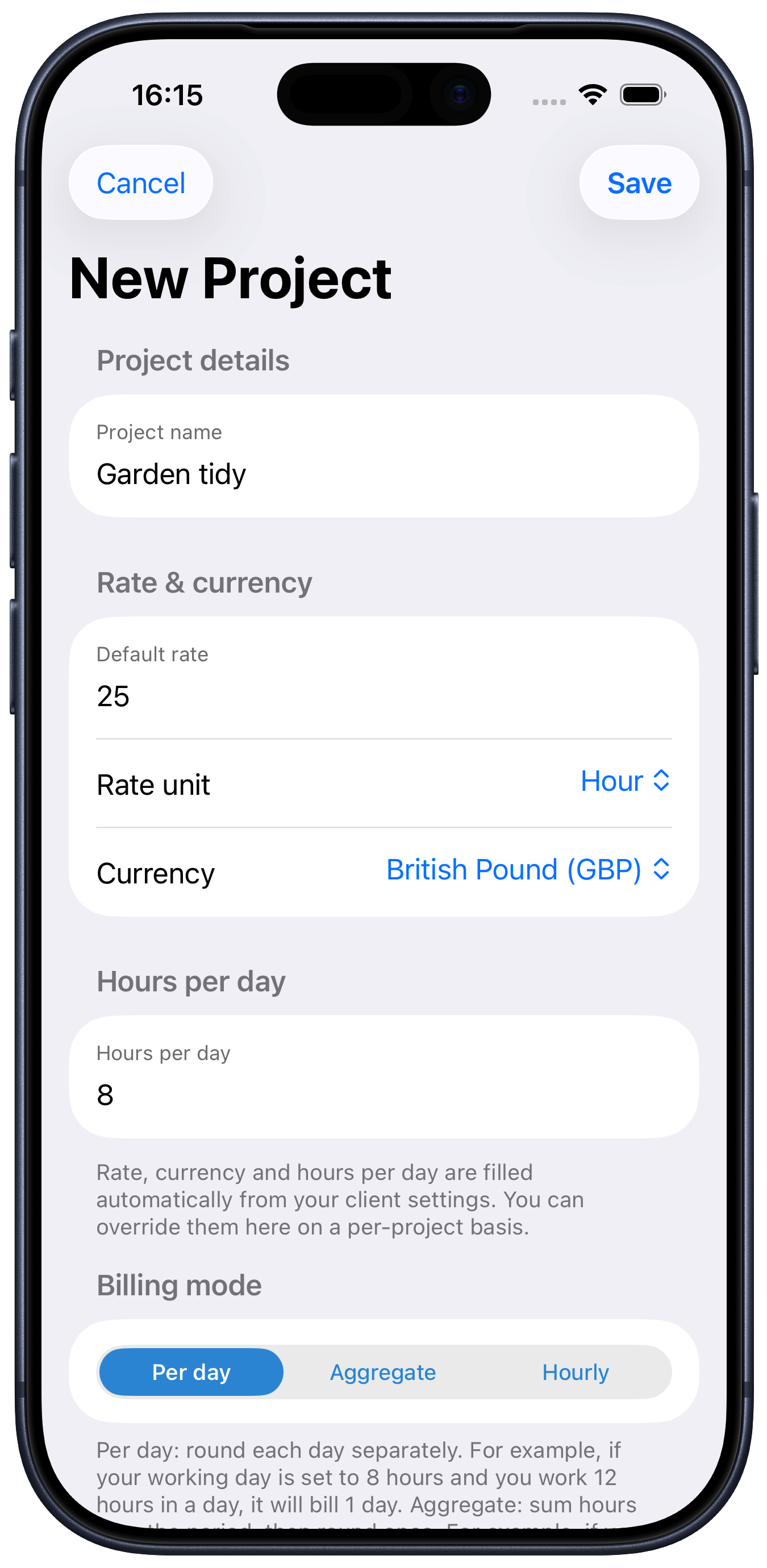
Enter the name of the project
Tap “Save” to add the new project to your client.
There are other fields on this form that show the default values picked up from when you created the client. So “Default rate”, “Rate unit”, “Currency” and “Hours per day” are all populated with whatever their respective values are on the client.
However, you can change these on a per project basis and SoloTime will use these project values over the default values associated with the client.
The final option on the form is “Billing mode”, which can be set to “Per day”, “Aggregate” or “Hourly”.
Per day: round each day separately. For example, if your working day is set to 8 hours and you work 12 hours in a day, it will bill 1 day.
Aggregate: sum hours over the period, then round once. For example, if you work 4 hours on Monday and 4 hours on Wednesday, it will bill 1 day.
Hourly: bill purely by the hour. For example, work 12 hours, it will bill for 12 hours.")